Data Linkage Checks
This page covers the manual, human-in-the-loop step that resolves linkage discrepancies the automated processing pipeline can't settle on its own. When the redundant Individual ID queries return a specimen count that doesn't match the recorded number of beetles for a tray, that tray is flagged and routed to a reviewer, who physically compares the specimens against the CSV to reconcile the mismatch. It documents the two main cases—too many linked individuals (QueryOver) and too few (QueryUnder)—plus how to handle a miscounted tray, ensuring every imaged specimen is correctly connected to its database record before the data is finalized. The processing code that generates these flagged QueryOver and QueryUnder files is available in the Imageomics/CarabidImaging repository.
Purpose and Scope
This SOP provides detailed protocols for checking the CSV files of trays where the data processing query has identified too many or too few individuals for the Tray.
Too Many Individuals: "QueryOverӦ
- Enter the directory “NEONIndividualLinkageChecks/QueryOver” to see what needs to be checked.
- Order the folder alphabetically by Name to group species together
- For each csv in the folder:
- Open the csv file
- Click the “open with” drop-down at the top of the screen and select Google Sheets
- Use the File Name (species, year, domain, tray type, ID range) to locate the physical tray of specimens
- There will be a blank column next to “individualID” called “Present”, this is where you will enter your information.
- Carefully compare the list of individualID’s in the CSV with those in the tray.
- Enter a 1 into “Present” if the beetle is in the tray, enter a 0 if it is absent
- Once all of the rows have a 0 or a 1, do a check by enter =SUM([interst cells here]) at the bottom of the column
- This will likely autofill with cell values if the data has all be entered
- Compare the SUM value to the value in column “NumberOfBeetlesInTray”
- Ensure that it matches and DELETE THE EQUATION
- Close the file and move both the csv and the google sheet into the folder “Checked”
- Repeat for all files until the folder is empty and everything has been moved to “Checked”
Too Few Individuals: "QueryUnderӦ
- Enter the directory “NEONIndividualLinkageChecks/QueryUnder” to see what needs to be checked.
- Order the folder alphabetically by Name to group species together
- For each csv in the folder:
- Open the csv file
- Click the “open with” drop-down at the top of the screen and select Google Sheets
- Use the File Name (species, year, domain, tray type, ID range) to locate the physical tray of specimens
- There will be two blank columns next to “individualID” called “Present” and “Order”, this is where you will enter your information.
- Carefully compare the list of individualID’s in the CSV with those in the tray.
- Enter a 1 into “Present” if the beetle is in the tray, enter a 0 if it is absent
- For 1’s, enter their order in the box, as displayed below.
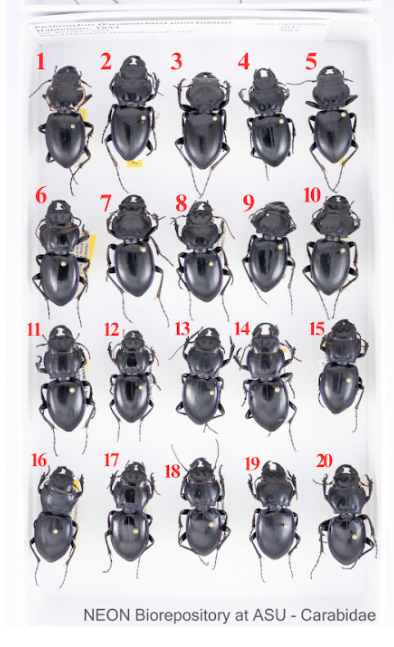
- When you find a beetle with an individualID that is not in the spreadsheet, insert a row and carefully transcribe the full individualID number from the beetle, enter a 1 in present, and record its order in the box.
- Once all of the rows have a 0 or a 1, do a check by enter
=SUM([interst cells here])at the bottom of the column- This will likely autofill with cell values if the data has all be entered
- Compare the SUM value to the value in column “NumberOfBeetlesInTray”
- Ensure that it matches and DELETE THE EQUATION
- Close the file and move both the csv and the google sheet into the folder “Checked”
- Repeat for all files until the folder is empty and everything has been moved to “Checked”
Other things that can happen:
- Sometimes the query is incorrect because the number of beetles in the tray was counted or recorded incorrectly. If you find that the number in “NumberOfBeetlesInTray” is incorrect, update it the column